
Android SDK
Overview
The Geidea Payment SDK delivers a seamless and secure payment experience for mobile applications. Built with flexibility and ease of use in mind, our SDK empowers developers to integrate payment functionality with just a few lines of code and maximum UI customization with various presentation modes.
Key Features
How it works
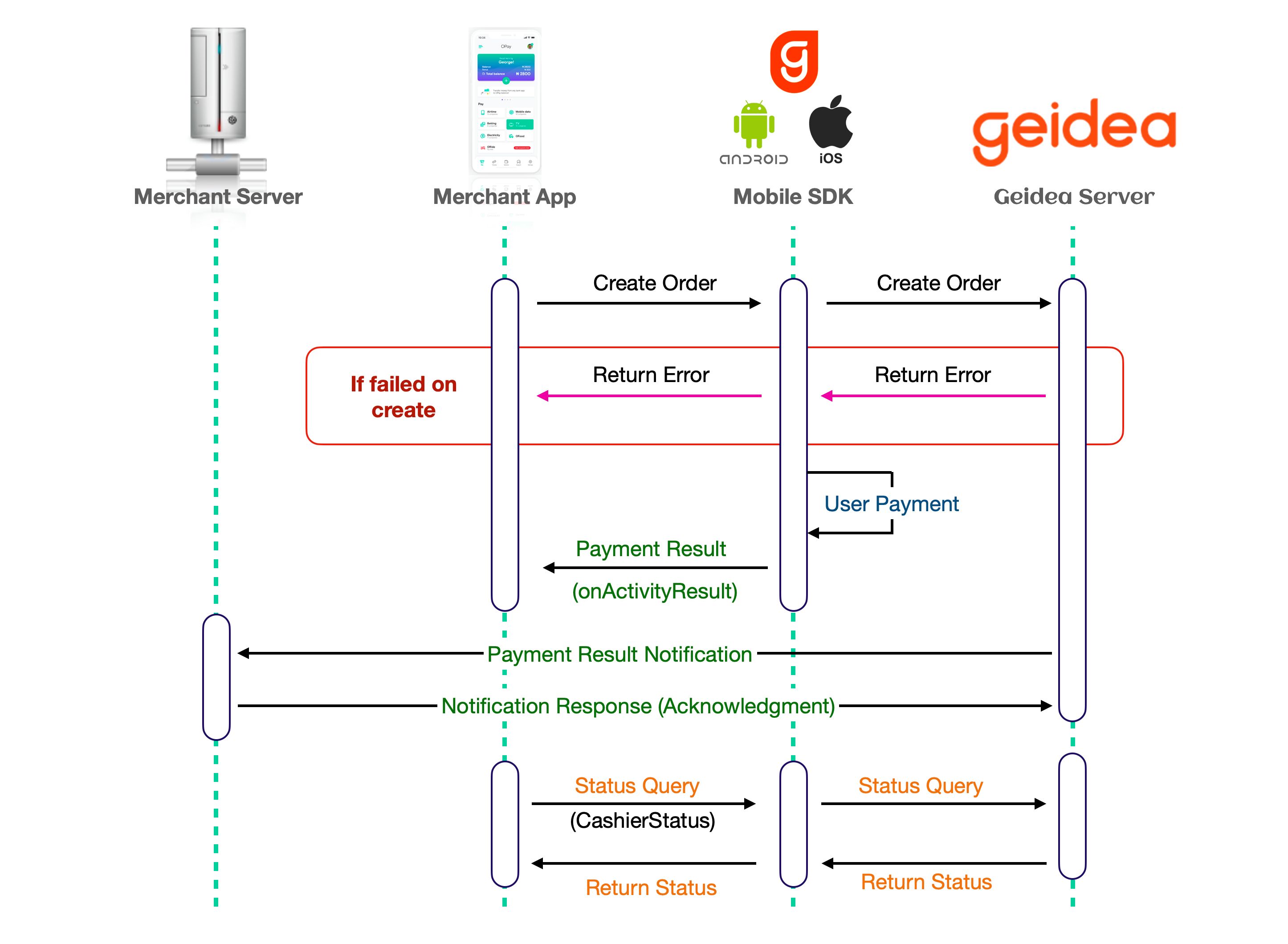
Mobile SDK Workflow
Getting Started
This guide will walk you through the integration process for the Geidea Android SDK
- Set up and initialize the Geidea Android SDK in your application.
- The SDK will display available payment methods and gather customer payment information.
- The SDK will process and transmit the payment request to Geidea's payment gateway.
- Receive the payment processing response through the Android SDK plugin.
- Display the transaction outcome to your customer within your Android application.
Prerequisites
| Requirements | Version / Details |
|---|---|
| Download Geidea Android SDK Version | 2.0.9 |
| Minimum Android Version | Android 6.0 (API level 23) |
| Kotlin Version | 1.9.25+ with JVM target 11 |
| Java Version | Java 11 (minimum and target) |
| Gradle | 8.0+ |
| Compose BOM | 2024.02.00+ (if using Jetpack Compose) |
| Android Gradle Plugin (AGP) | 8.0.0+ |
Gradle Setup
- Geidea will send the Android SDK to the merchant as a zip file
Extract the zip file in the home directory of your local machine
/Users/AME/.m2/repository- Proceed to update your build.gradle files to access the local maven repository.
buildscript {
  repositories {
	// ...
        mavenLocal()
    }
}
allprojects {
    repositories {
        // ...
        mavenLocal()
    }
}- Add the extracted SDK as a dependency in your app-level build.gradle
implementation 'net.geidea:PGW-SDK:<LATEST VERSION>'Integration Guide
Step 1: Create a Payment Session (Server-Side)
You can view the entire API reference here.
Before launching the SDK, you need to create a payment session by calling the Geidea API.
In order to create session, you’ll need to generate a signature as demonstrated below
Create Signature
- Concatenate the string of MerchantPublicKey, OrderAmount, OrderCurrency, MerchantReferenceId, timeStamp.
- Amount must be formatted with 2 decimals.
- Hash (SHA-256) the above concatenated string by Merchant API Password.
- Convert Hashed Value to Base64Str
- API Endpoint
POST https://api.merchant.geidea.net/payment-intent/api/v2/direct/sessionhttps://api.ksamerchant.geidea.net/payment-intent/api/v2/direct/sessionhttps://api.geidea.ae/payment-intent/api/v2/direct/session- Authentication
-
- Include the following header with your request:
Authorization: Basic <BASE64_ENCODED_CREDENTIALS>

Where <BASE64_ENCODED_CREDENTIALS> is your merchant key and password encoded in base64 format:

base64encode("MERCHANT_KEY:MERCHANT_PASSWORD")- Request Body
{
    "amount": 8.0,
    "appearance": {
        "showAddress": true,
        "showEmail": true
    },
    "currency": "EGP",
    "order": {
        "orderItems": [
            {
                "count": 1,
                "icon": "",
                "name": "test",
                "price": 2.0
            }
        ],
    "summary": {
            "shipping": 2.0,
            "subTotal": 5.0,
            "vat": 1.0
        }
    },
    "signature": "J5sBLvid9k9NZ+94NG5jkdEVySxe73ZpLK1ujYD7Zy8\u003d",
    "timeStamp": "2025-09-29 11:32:50"
}- Payment Session Response
{
	"session": {
		"id": "b90e8b08-178e-4a8e-0b6c-08dde9fbe245",
	    // ...
	},
	"responseMessage": "Success",
	"detailedResponseMessage": "The operation was successful",
    // ...
}We will use this session ID to initiate the payment SDK on the client-side.
Payment Parameters Reference
| Parameter | Type | Required/Optional | Description |
|---|---|---|---|
| Amount | Number | Required | Total payment amount |
| Currency | String | Required | Currency code (e.g., "EGP") |
| Signature | String | Optional | Security signature (generated with generateSignature public function in SDK) |
| timeStamp | String | Optional | Timestamp in format "YYYY-MM-DD HH:MM:SS" |
| appearance | Object | Optional | Display settings for the payment form |
| appearance.showAddress | Boolean | Optional | Whether to show the address field |
| appearance.showEmail | Boolean | Optional | Whether to show the email field |
| order | Object | Optional | Order details |
| order.orderItems | Array | Optional | List of items in the order |
| order.orderItems[ ].count | Number | Required | Quantity of the item |
| order.orderItems[ ].name | String | Required | Name of the item |
| order.orderItems[].price | Number | Required | Price of the item |
| order.orderItems[].icon | String | Optional | Icon URL for the item |
| order.summary | Object | Optional | Order summary totals |
| order.summary.subTotal | Number | Required | Subtotal amount (excluding any taxes) |
| order.summary.shipping | Number | Optional | Shipping cost |
| order.summary.vat | Number | Optional | VAT/tax amount |
Step 2: SDK Configuration (Client-Side)
import net.geidea.sdk.GDPaymentSDK
import net.geidea.sdk.sdk.*

class PaymentActivity : AppCompatActivity() {
	private lateinit var paymentSDK: GDPaymentSDK

	override fun onCreate(savedInstanceState: Bundle?) {
    	super.onCreate(savedInstanceState)
    	setContentView(R.layout.activity_payment)

    	// Create SDK configuration
    	val configuration = GDPaymentSDKConfiguration(
        	sessionId = "your_session_id", // From Step 1
        	region = REGION.EGY, // or UAE, KSA
        	language = SDKLanguage.ENGLISH, // or ARABIC
        	theme = SDKTheme(  // optional
            		primaryColor = "#667eea",
            		secondaryColor = "#764ba2",
            		merchantLogo = ContextCompat.getDrawable(this, R.drawable.logo)
        		)
    	)

    	// Initialize SDK
    	paymentSDK = GDPaymentSDK.sharedInstance()
    	paymentSDK.start(configuration, this@PaymentActivity)
	}
}
import net.geidea.sdk.GDPaymentSDK
import net.geidea.sdk.sdk.*
@Composable
fun PaymentScreen() {
val context = LocalContext.current
// Initialize SDK
val configuration = remember {
GDPaymentSDKConfiguration(
sessionId = "your_session_id", // From Step 1
region = REGION.EGY, // or UAE, KSA
isSandbox = true, // for pre-production
language = SDKLanguage.ENGLISH, // or ARABIC
theme = SDKTheme(
primaryColor = "#667eea",
secondaryColor = "#764ba2",
merchantLogo = ContextCompat.getDrawable(context, R.drawable.logo)
)
)
}
Button(
onClick = {
GDPaymentSDK.sharedInstance().apply {
start(configuration, context)
}
}
) {
Text("Pay Now")
}
}Presentation Styles (Upcoming)
The SDK offers multiple presentation options to match your app’s UX requirements:
- Push Activity (Full Screen)
- Best for: Dedicated payment flow with maximum screen real estate
GDPaymentSDK.sharedInstance().start(
	configuration,
    context = this@MainActivity,
	presentationStyle = SDKPresentationStyle.Push(),
)- Fragment Integration
- Best for: Inline payment forms within existing screens
GDPaymentSDK.sharedInstance().start(
	configuration,
	context = this@MainActivity,
	presentationStyle = SDKPresentationStyle.Present(
		presentationType = SDKPresentationStyle.Present.PresentationType.Fragment(
			fragmentManager = supportFragmentManager,
			containerId = R.id.payment_container
		)
	),
)
Layout Example:
<FrameLayout
    android:id="@+id/payment_container"
    android:layout_width="match_parent"
android:layout_height="wrap_content" />- Bottom Sheet Modal
- Best for: Quick checkout without leaving the current screen
GDPaymentSDK.sharedInstance().start(
    configuration,
	context = this@MainActivity,
    presentationStyle = SDKPresentationStyle.BottomSheet(
        bottomSheetType = SDKPresentationStyle.BottomSheet.BottomSheetType.Fragment,
        maxHeightDp = 600f
    ),
)- Handling Payment Results
- Implement the SDK callback to handle payment outcomes
import net.geidea.paymentsdk.model.*

class MainActivity : AppCompatActivity(), GDPaymentResultListener {

    override fun onCreate(savedInstanceState: Bundle?) {
        super.onCreate(savedInstanceState)

        // Set callback
        GDPaymentSDK.sharedInstance().setPaymentCallback(this)
    }

    override fun onPaymentCompleted(result: GDPaymentResult) {
        // Payment successful
        Log.d("Payment", "Payment completed: ${result.orderId}")
    }

    override fun onPaymentFailed(error: GDPaymentError) {
        // Payment failed
        Log.e("Payment", "Payment failed: ${error.message}")
    }

    override fun onPaymentCanceled() {
        // User canceled payment
        Log.d("Payment", "Payment canceled by user")
    }
}- Theme Customization
- Customize the SDK appearance to match your brand
val customTheme = SDKTheme(
    primaryColor = Color.parseColor("#FF6B35"),
    secondaryColor = Color.parseColor("#F7F7F7"),
    merchantLogo = R.drawable.logo
)

val configuration = GDPaymentSDKConfiguration(
    val theme: SDKTheme = SDKTheme(),
    val sessionId: String,
    val language: SDKLanguage = SDKLanguage.ENGLISH,
    val region: REGION = REGION.EGY,
	val isSandbox: Boolean = false
)- Payment Testing
- Use a Sandbox environment in the SDK configuration to test the different payment scenarios using the test cards here
API Reference
GDPaymentSDKConfiguration
data class GDPaymentSDKConfiguration(
    val theme: SDKTheme = SDKTheme(),
    val sessionId: String,
    val language: SDKLanguage = SDKLanguage.ENGLISH,
    val region: REGION = REGION.EGY,
	val isSandbox: Boolean = false
)
SDKTheme
data class SDKTheme(
    val primaryColor: String? = null,
    val secondaryColor: String? = null,
    val merchantLogo: Drawable? = null
)
GDPaymentResult
data class GDPaymentResult(
    val orderId: String? = null,
    val tokenId: String? = null,
    val agreementId: String? = null,
    val paymentMethod: PaymentMethodResult? = null,
    )

data class PaymentMethodResult(
    val type: String? = null,
    val brand: String? = null,
    val cardholderName: String? = null,
    val maskedCardNumber: String? = null,
    val wallet: String? = null,
    val expiryDate: ExpiryDateResult? = null
)

data class ExpiryDateResult(
    val month: Int? = null,
    val year: Int? = null
)
GDPaymentError
data class GDPaymentError(
    val code: String,
    val message: String,
    val details: String?
)
Updated 5 days ago