
iOS SDK
Overview
The Native Payment SDK enables seamless integration of secure and customizable payment flows within mobile applications. It supports card payments, Apple Pay, and 3D Secure verification, offering flexibility in UI design, language support, and presentation style. Designed for both development (sandbox) and production environments, this SDK is optimized for modern UX with support for light/dark modes and RTL languages.
Key Feature
How it works
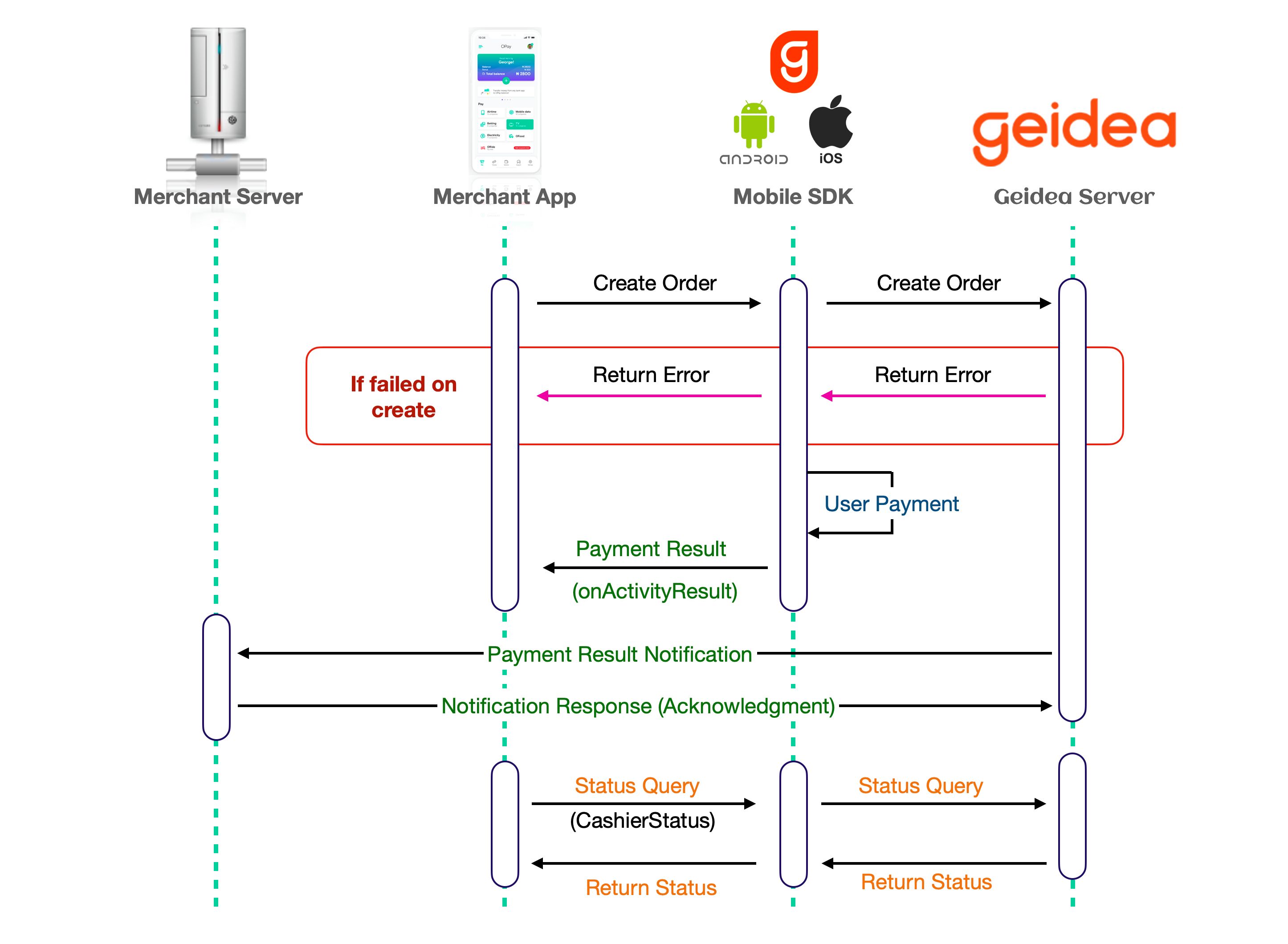
Mobile SDK Workflow
Getting Started
This guide will walk you through the integration process for the Geidea iOS SDK.
- Set up and initialize the Geidea iOS SDK in your application.
- The SDK will display available payment methods and gather customer payment information.
- The SDK will process and transmit the payment request to Geidea's payment gateway.
- Receive the payment processing response through the iOS SDK plugin.
- Display the transaction outcome to your customer within your iOS application.
Prerequisites
| xCode Version | iOS Version | Swift Version |
|---|---|---|
| Download Geidea iOS SDK Version | 1.5.0 | |
| 13 and above | 15 and above | 6.1 and above |
Integration Guide
Installation
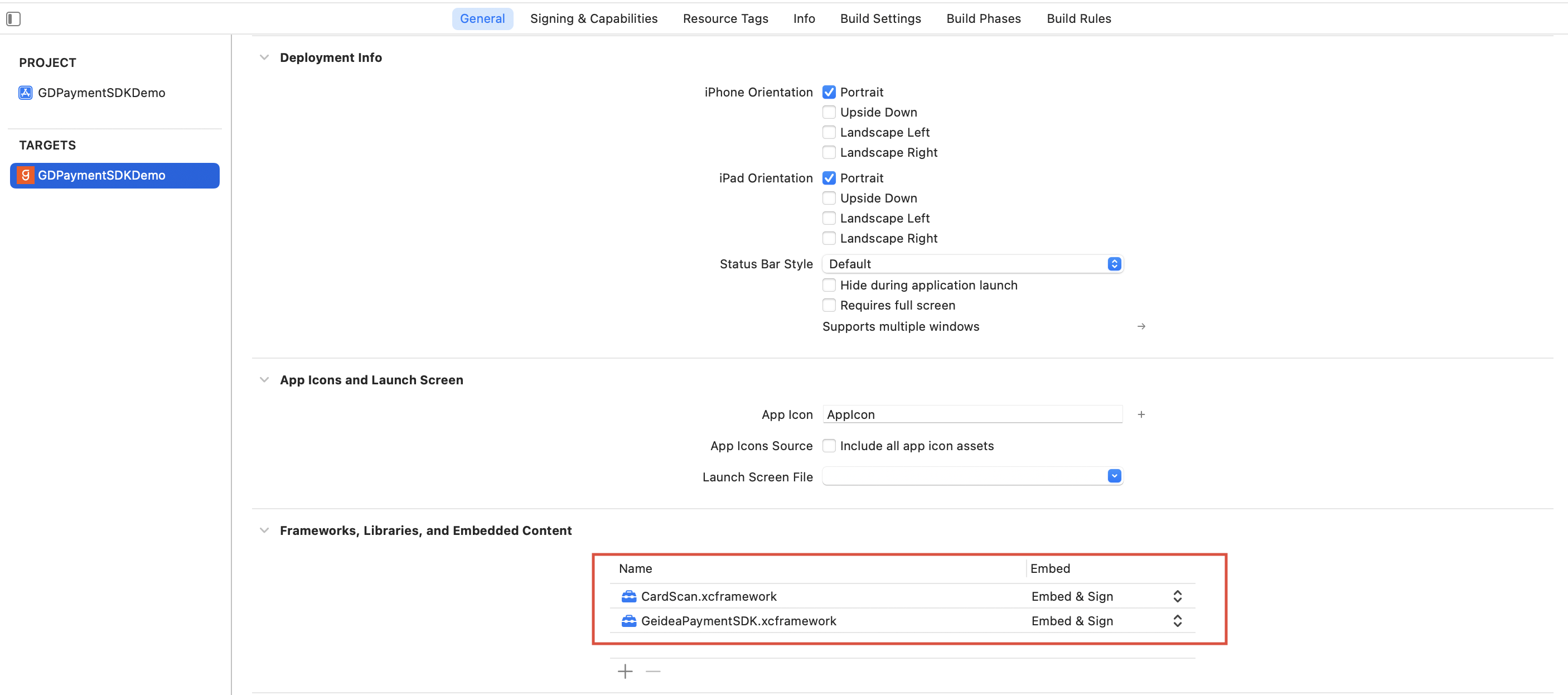
Initialization
-
Step 1: Create a Payment Session (Server-Side)
You can check the whole API reference from here.
Before launching the SDK, you need to create a payment session by calling the Geidea API.
In order to create session you’ll need to generate a signature as demonstrated below
Create Signature
- Concatenate the string of MerchantPublicKey, OrderAmount, OrderCurrency, MerchantReferenceId, timeStamp.
- Amount must be formatted with 2 decimals.
- Hash (SHA-256) the above concatenated string by MerchantAPIPassword.
- Convert Hashed Value to Base64Str
- API Endpoint
POST https://api.merchant.geidea.net/payment-intent/api/v2/direct/sessionhttps://api.ksamerchant.geidea.net/payment-intent/api/v2/direct/sessionhttps://api.geidea.ae/payment-intent/api/v2/direct/session- Step 1: import GDPaymentSDK
import GeideaPaymentSDK- Step 2: SDK Configuration (Client-Side)
let configuration = GDPaymentSDKConfiguration(
    sessionId: sessionId,
    applePayConfig: ApplePayConfigurations(
        merchantId: applePayMerchantId,
        merchantName: "Merchant Name", //Optional: Defaults to "Geidea"
        merchantCapabilities: [.capability3DS], //Optional: Defaults to [.capability3DS]
        supportedNetworks: [.visa, .masterCard] //Optional: Defaults to [.visa, .masterCard, .amex]
    ),
    language: .en,
    region: .egy,
    theme: SDKTheme(
        style: .light,
        primaryColor: "#E52D2A",
        secondaryColor: "#FCEEEE"
    )
)
Create a Payment Session (Server-Side)
Before launching the SDK, you need to create a payment session by calling the Geidea API.
Include the following header with your request
Authorization: Basic <BASE64_ENCODED_CREDENTIALS>

Where <BASE64_ENCODED_CREDENTIALS> is your merchant key and password encoded in base64 format:

base64encode("MERCHANT_KEY:MERCHANT_PASSWORD")
Request Body
{
    "amount": 8.0,
    "appearance": {
        "showAddress": true,
        "showEmail": true
    },
    "currency": "EGP",
    "order": {
        "orderItems": [
            {
                "count": 1,
                "icon": "",
                "name": "test",
                "price": 2.0
            }
        ],
    "summary": {
            "shipping": 2.0,
            "subTotal": 5.0,
            "vat": 1.0
        }
    },
    "signature": "J5sBLvid9k9NZ+94NG5jkdEVySxe73ZpLK1ujYD7Zy8\u003d",
    "timeStamp": "2025-09-29 11:32:50"
}
Payment Session Response
{
	"session": {
		"id": "b90e8b08-178e-4a8e-0b6c-08dde9fbe245",
	    // ...
	},
	"responseMessage": "Success",
	"detailedResponseMessage": "The operation was successful",
    // ...
}We will use this session ID to initiate the payment SDK on the client-side.
Payment Parameters Reference
| Parameter | Type | Required/Optional | Description |
|---|---|---|---|
| Amount | Number | Required | Total payment amount |
| Currency | String | Required | Currency code (e.g., "EGP") |
| Signature | String | Optional | Security signature (generated with generateSignature public function in SDK) |
| timeStamp | String | Optional | Timestamp in format "YYYY-MM-DD HH:MM:SS" |
| appearance | Object | Optional | Display settings for the payment form |
| appearance.showAddress | Boolean | Optional | Whether to show the address field |
| appearance.showEmail | Boolean | Optional | Whether to show the email field |
| order | Object | Optional | Order details |
| order.orderItems | Array | Optional | List of items in order |
| order.orderItems[ ].count | Number | Required | Quantity of the item |
| order.orderItems[ ].name | String | Required | Name of the item |
| order.orderItems[].price | Number | Required | Price of the item |
| order.orderItems[].icon | String | Optional | Icon URL for the item |
| order.summary | Object | Optional | Order summary totals |
| order.summary.subTotal | Number | Required | Subtotal amount (excluding any taxes) |
| order.summary.shipping | Number | Optional | Shipping cost |
| order.summary.vat | Number | Optional | VAT/tax amount |
Presentation Styles
The SDK offers multiple presentation options to match your app’s UX requirements:
- Full Screen Present
Best for: Dedicated payment flow with maximum screen real estate
- Bottom Sheet Modal
Best for: Quick checkout without leaving the current screen
Theme Customization
Customize the SDK appearance to match your brand:
let theme = SDKTheme(
	style: .light,
	primaryColor: "#FF4D00",
	secondaryColor: "#F5F5F6",
)
GDPaymentSDKConfiguration(
    sessionId: sessionId,
    applePayConfig: ApplePayConfigurations(
        merchantId: applePayMerchantId,
        merchantName: "Merchant Name",
        supportedNetworks: [.visa, .masterCard, .mada]
    ),
    language: .en,
    region: .egy,
    theme: theme
)
API Reference
GDPaymentSDKConfiguration
let theme = SDKTheme(
	style: .light,
	primaryColor: "#FF4D00",
	secondaryColor: "#F5F5F6",
)
SDKTheme
public struct SDKTheme {
      let style: ThemeStyle
      let primaryColor: String
      let secondaryColor: String
      let arFontType: FontType
      let enFontType: FontType

      public init(
        style: ThemeStyle = .light,
        primaryColor: String = "#0036FF",
        secondaryColor: String = "#F5F5F6",
    ) {
        self.style = style
        self.primaryColor = primaryColor
        self.secondaryColor = secondaryColor
        self.arFontType = .Almarai
        self.enFontType =  .Montserrat
    }
}
GDPaymentResult
public struct GDPaymentResult {
    public var orderId: String
    public var agreementId: String?
    public var tokenId: String?
    public var paymentMethod: PayPaymentMethod?
}

public struct PayPaymentMethod {
    public struct ExpiryDate {
        public var month: Int
        public var year: Int
    }

    public var brand: String?
    public var type: String?
    public var cardholderName: String?
    public var maskedCardNumber: String?
    public var expiryDate: ExpiryDate?
}
GDPaymentError
public struct GDSDKError {
    public var code: String
    public var message: String
    public var details: String?
}
Updated about 21 hours ago