
Pay by Invoice - Portal [KSA]
Payment invoices are a convenient method to generate a unique invoiceId that can be used by your customer to make payment. When sent to a customer, the invoiceId can be used to be added in Geidea website to direct your customer to a secure Geidea-hosted payment page, enabling payment via their preferred method (currently supporting cards and select digital wallets). This secure hosted payment page is accessible across all internet-connected devices, ensuring convenience and flexibility for your customers.
The invoiceId can be shared with your customers via email or SMS, conveniently through our portal, simplifying the process for them to provide payment details and complete their purchase with you.
Advantages of Geidea's Payment Invoices feature
| Advantage | Description |
|---|---|
| No code experience | The Geidea merchant portal helps you create and manage any number of payment invoices straight through our user-friendly merchant portal, without the need to write any code. |
| Customized branding | You can customize the look and feel of your payment invoiceId and emails with your business branding and logos to make them your own. |
| Compatibility with multiple channels | You can share the payment invoices the way your customers want; via SMS, e-mail directly through Geidea or via any social media platform by copying our invoices to it |
Capabilities
| Capability | Description |
|---|---|
| Create a Quick Payment Invoice | Quickly create a payment invoice by entering minimum details required consisting of customer information and payment amount. The payment invoiceId generated is sent by Geidea based on your customer's contact detail. |
| Create a Standard Payment Invoice | Create a payment invoice with detail of your customer, product/service, discounts & charges and the option to collect your customer's shipping address. The payment invoiceId generated is sent by Geidea based on your customer's contact detail. |
| Payment Invoice Dashboard | Get a summarized view of payment made through your invoices and the most recent ones along with their payment status |
| Viewing & Managing Quick/Standard Invoices | View detail of a payment invoice, edit it or send it to the customer |
| Create a Static Payment Invoice | Create a payment invoice for your product/service that can be paid by multiple customers for efficient collection of payments. You can also collect your customer's shipping address for delivery of goods against payment collected. You can share the payment invoiceId directly with the customer or through a medium/platform of your choice. |
| Create Bulk Payment Invoices | Create multiple payment invoices in bulk by uploading data of your customers and product/services. Against your uploaded bulk record file, payment invoices will be generated automatically against each record and send to the customer. |
Create a Quick Payment Invoice
1. Log in with your merchant credentials into our merchant portal
2. On the left panel, select 'Payment Request' to get to the Payment Invoice Dashboard screen
3. Click on the 'Create Pay Request' button
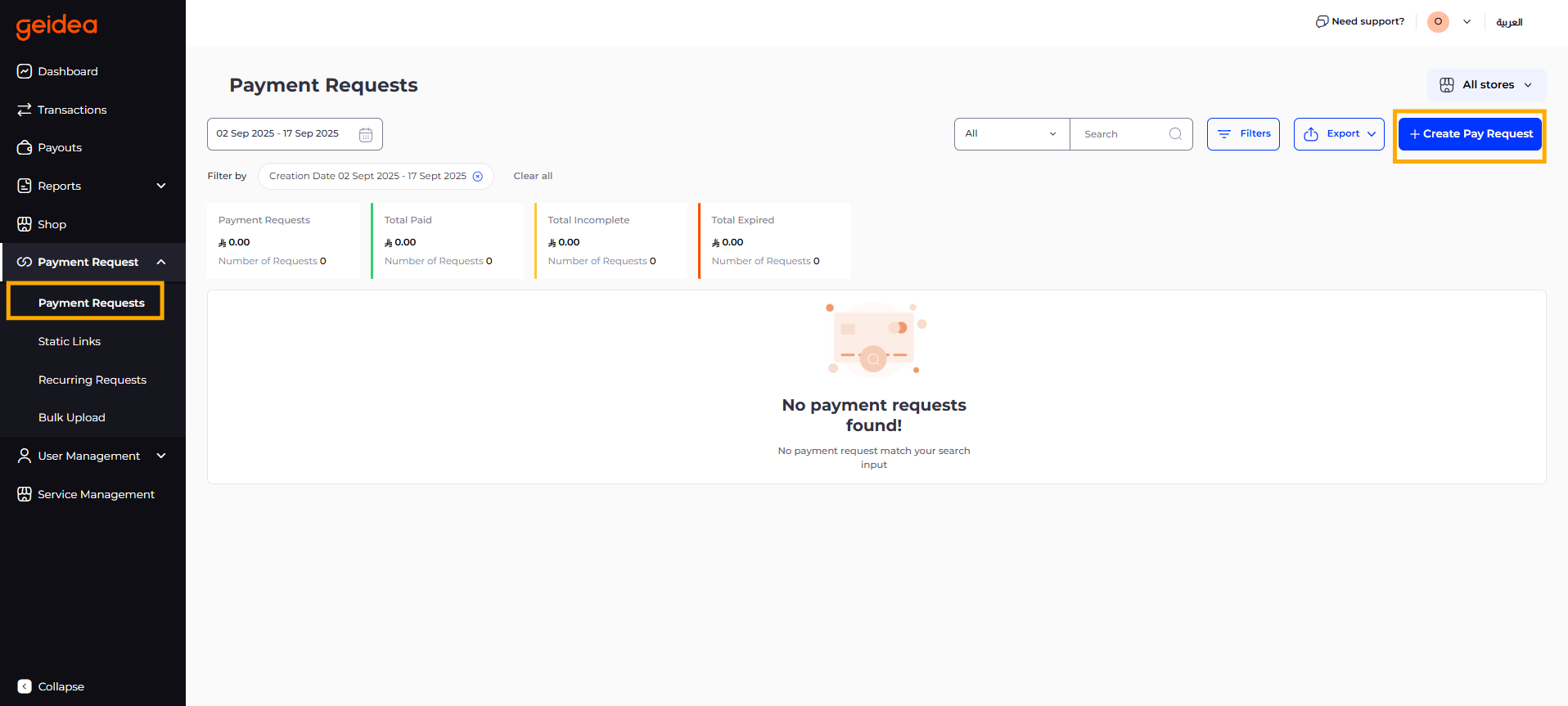
4. The 'Create Payment Invoice' screen will be displayed.
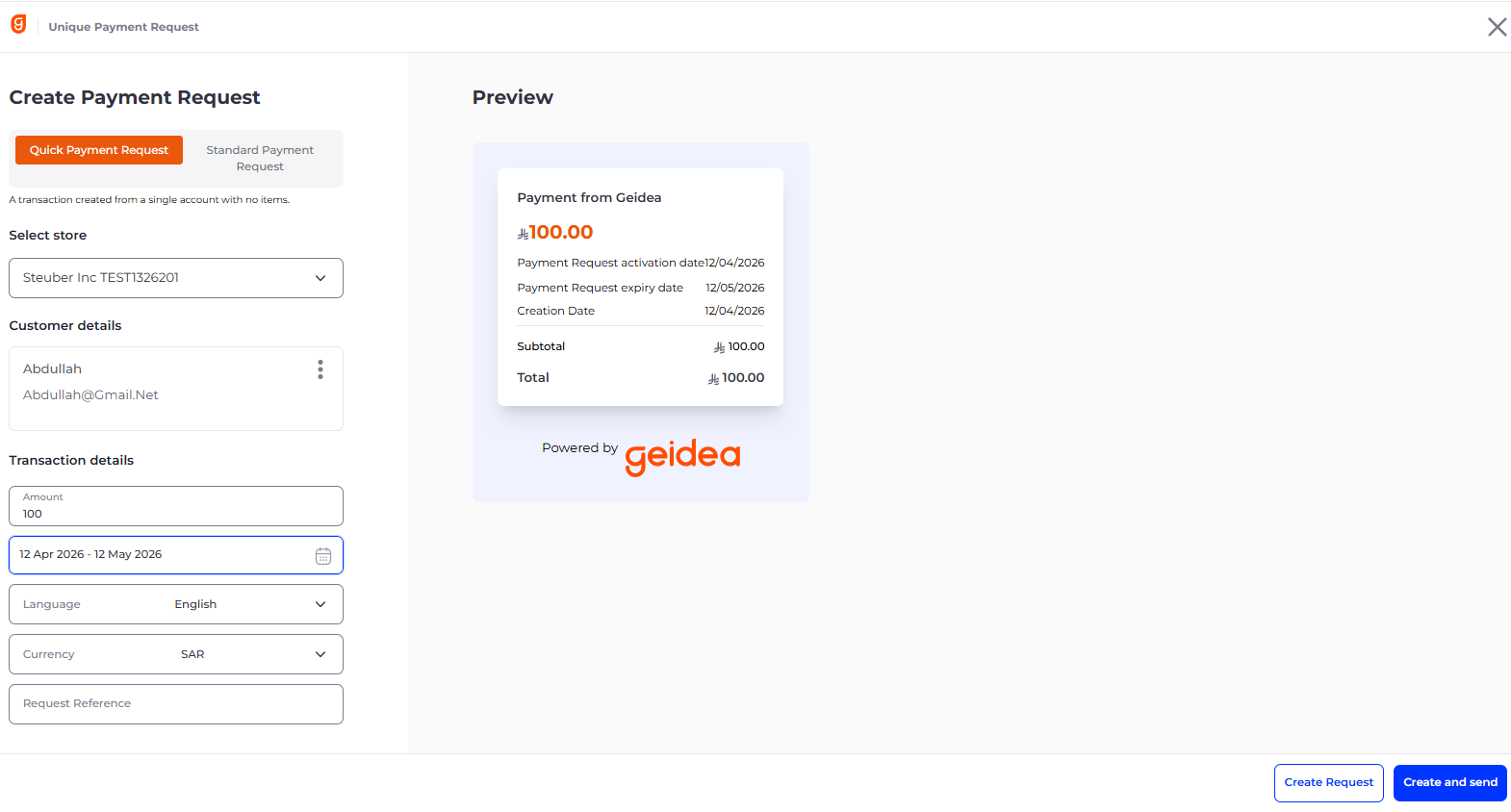
5. Fill up following detail in the form to create your payment invoice.
Customer Details :
Allows you to search for an existing customer or to create a new one. A customer once created is saved for you to use later as well.
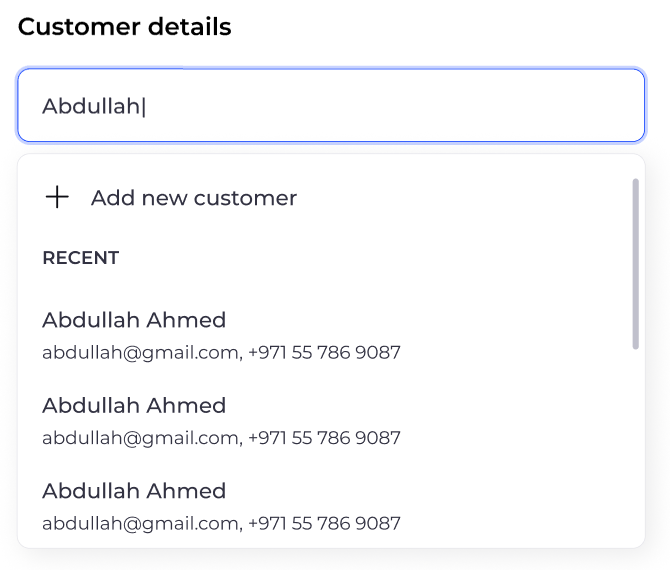
You can press 'Add new customer' to create a new customer.
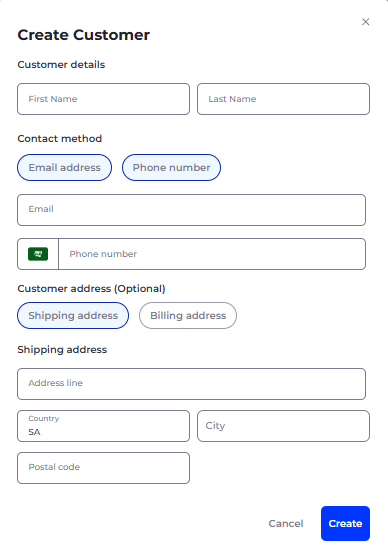
a. Customer Name – Mandatory field
b. Email Address – Requires valid email to send payment invoice on. Mandatory if phone number is not provided
c. Phone Number – Requires valid mobile number to send payment invoice on. Mandatory if email address is not provided
d. Shipping & Biling Address - Used to capture customer's address against the payment invoice. Optional field
Transaction Details :
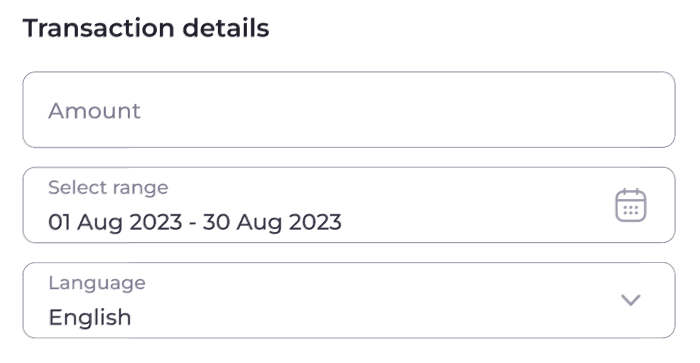
a. Amount - Enter the amount you wish to collect from your customer against this invoice. Mandatory field
b. Date Range - Select the activation and expiry date for your invoice. You can choose a future date as your invoice activation date as well. The invoice will not work before activation or after expiry. By default, the invoice expiry is set as 30 days, starting from the invoice creation date.
c. Language - Set the default language for your payment invoice, choosing between English and Arabic.
Quick Invoice Preview Section:
Displays a summary view of your payment invoice with all key details.
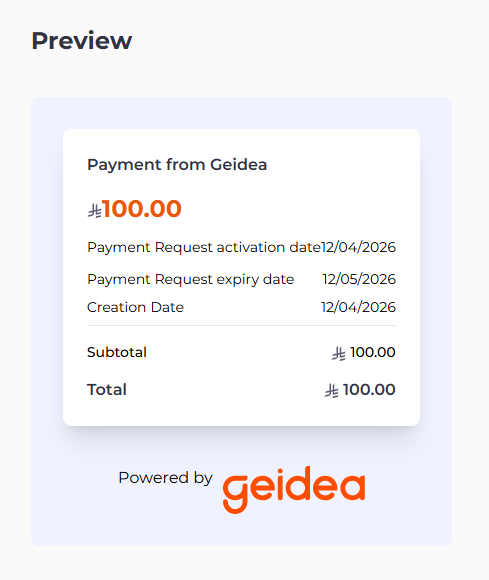
Creating & Sending the Payment InvoiceId:
_Create Request: Creates the invoiceId only without sending it
Create and Send: Creates the invoiceId and sends it via email and/or SMS, based on your input of customer's email address or phone number.
Create a Standard Payment Invoice
Click on '_Standard Invoice' button to get all the features needed to create a detailed invoice for your customer.
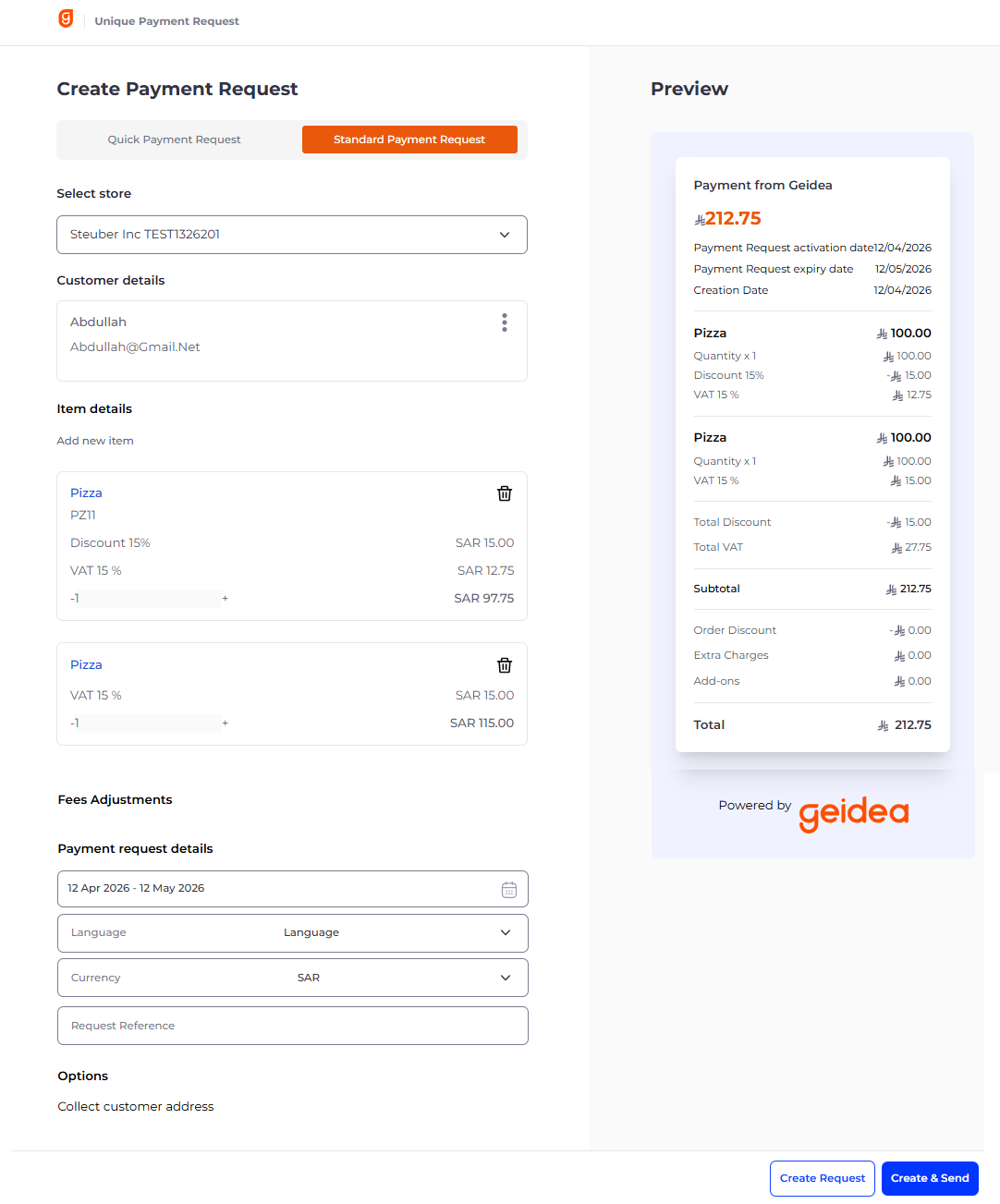
Item Details :
Allows you to separately add each of your products/services you want to make part of the invoice. You can add as many items as your want.
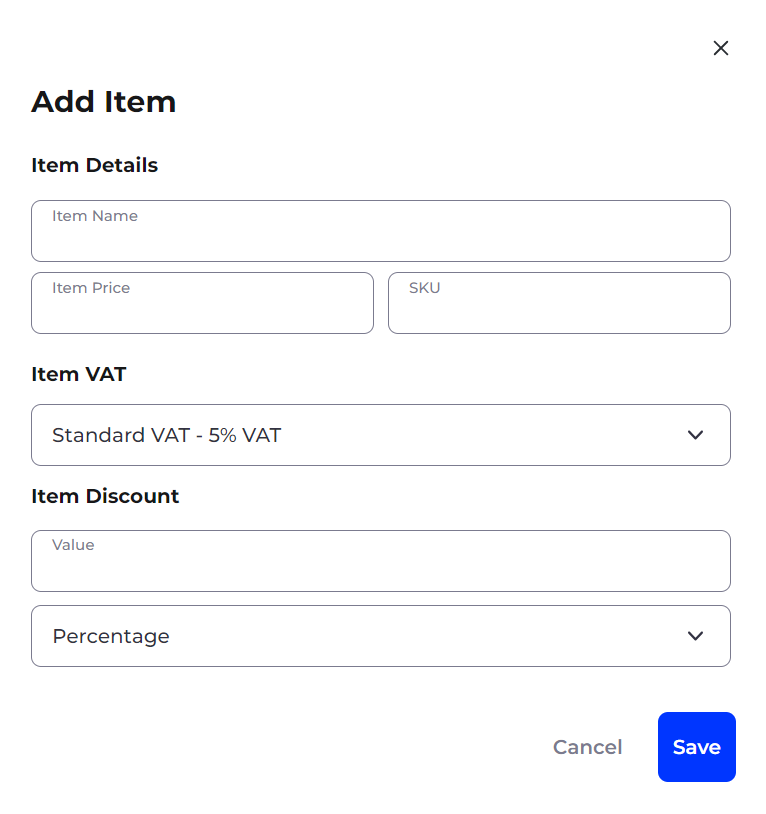
a. Item Name – Input the name of your product/service. Mandatory field.
b. Item Price – Input the unit price of product/service. Mandatory field.
c. SKU– Input Stock-Keeping-Unit detail of your product. Optional field
d. Item VAT – Choose a VAT type from the list to be applied on your product. Mandatory field
e. Item Discount – Enter the discount you want to apply. You can choose between a flat or percentage-based discount. The discount will be applied to your item price. Optional fields
Click on 'Save' to add your item.
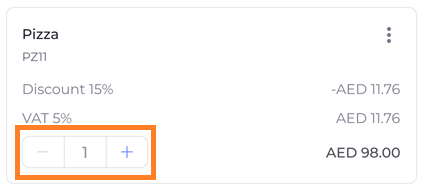
Once added you can also change the quantity of the item based on your customer's order.
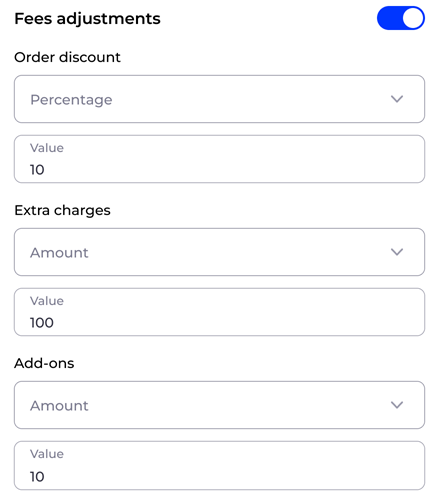
Fee Adjustment (optional):
Allows you to separately add additional discount or charges that apply on the whole order i.e. the sum of all items. This option can be enabled or disabled using the toggle button next to it. For both discount and charges, you can choose to make it a flat discount/fee or percentage based.
Collect Customer Address:

Enable this option if you want us to collect your customer's address when he/she pays the invoice, making it part of your order detail.
Standard Invoice Preview Section:
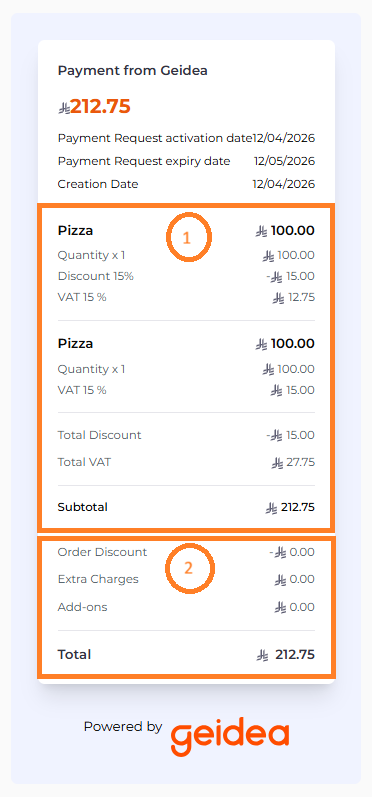
1 - Displays the total number of items added along with individual computation for each item including discount and VAT selected
2 - Displays items sub-total, discount and charges on it and the net total amount for the payment invoice
If you have Tamara enabled as payment methodIf you want Tamara to be there as a payment method when the Standard Payment Invoice is being paid, the following information is mandatory to be passed during invoice creation.
Customer Creation:
- First & Last name
- Mobile Number & Email Address
- Billing and Shipping Address
Item Creation:
- Item Name
- Item Price
- SKU
Payment Invoice Dashboard
The payment invoice dashboard provides you with a summarized view of all invoices generated along with their current status. You can check which of your payment invoice are paid, expired or not sent to your customers.
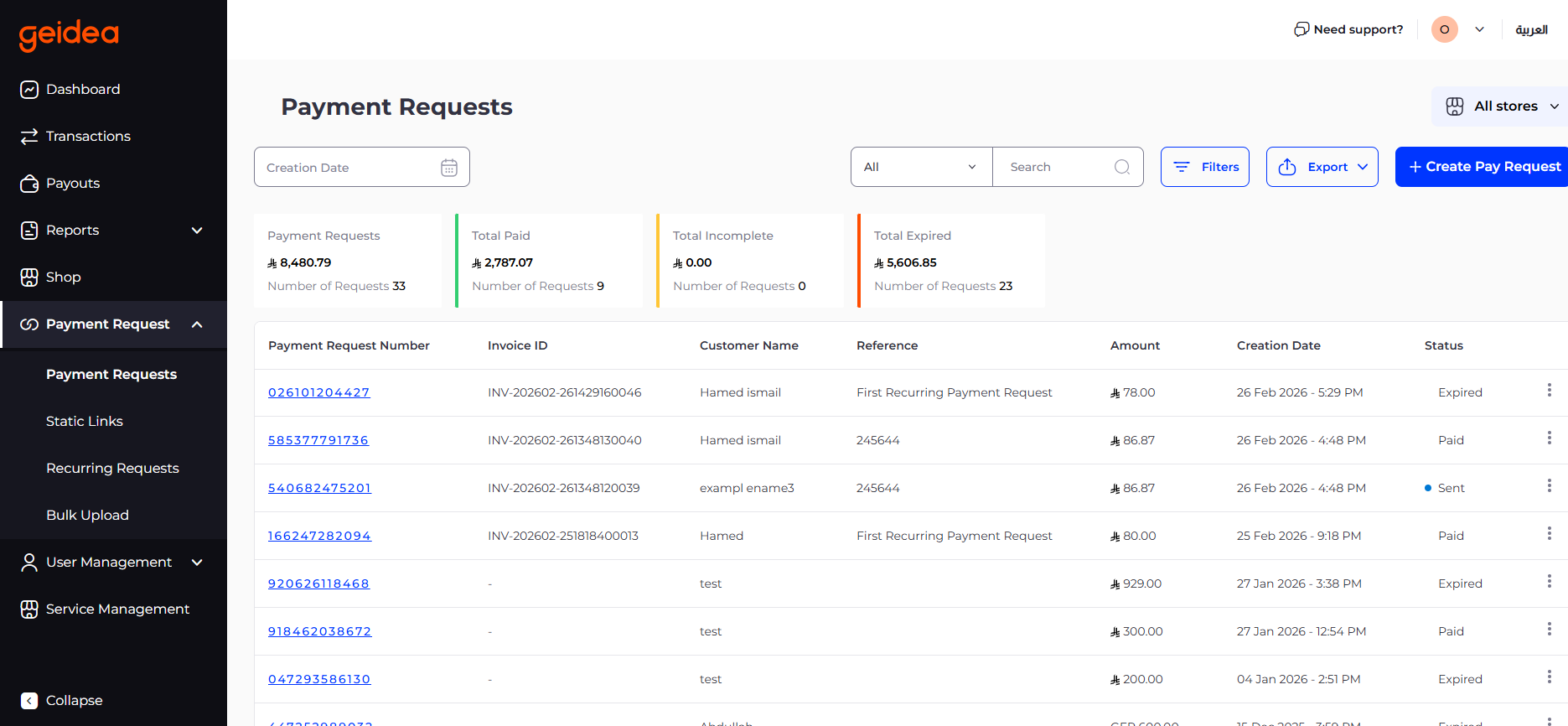
The dashboard hosts a number of options for you to Search, Filter and even Export your payment invoices data based on a flexible selection of criteria.
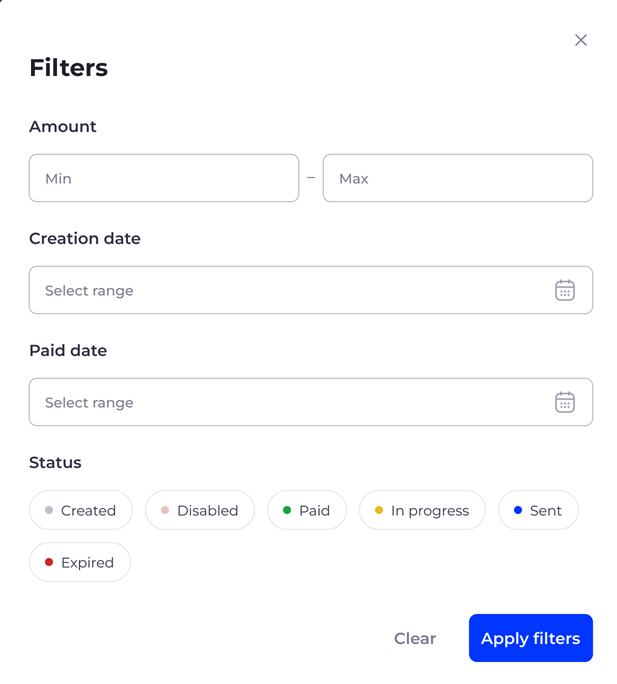
You can also make use of some convenient quick-actions available against each invoice, right from within the dashboard view to manage your invoices efficiently.

Bulk Uploads
- Log in with your merchant credentials into our merchant portal
- On the left panel, select 'Bulk Uploads' to get to the Bulk Uploads dashboard screen
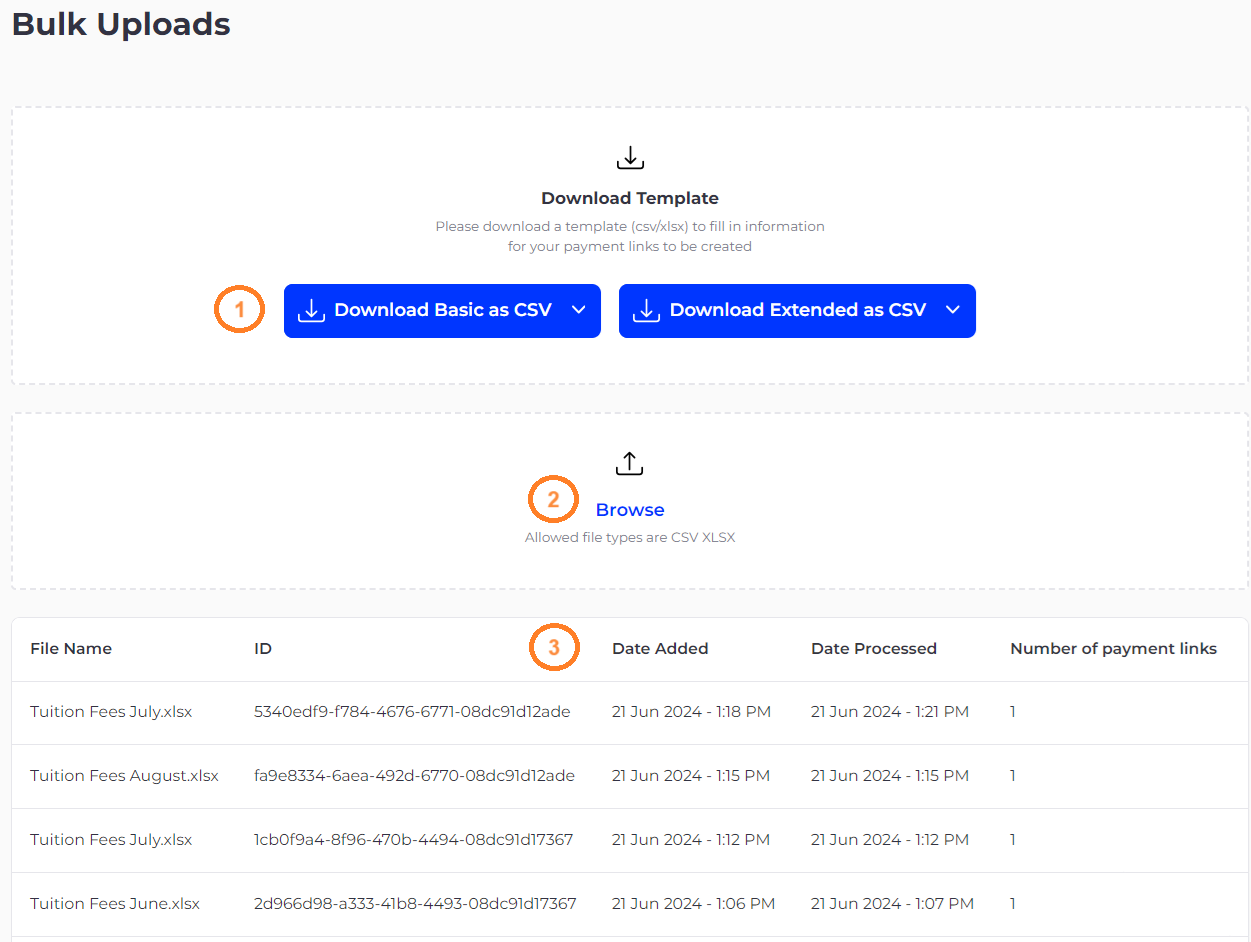
1 - Download the bulk file template with pre-filled sample data in csv or xlsx format and update your customer, product/service and payment invoice related information in the downloaded file
2 - Browse and upload the bulk file with updated payment invoice information
3 - Uploaded bulk file will processed and its processing status will be displayed. Payment Invoices against each record in the bulk file will be created automatically
Customer Flow
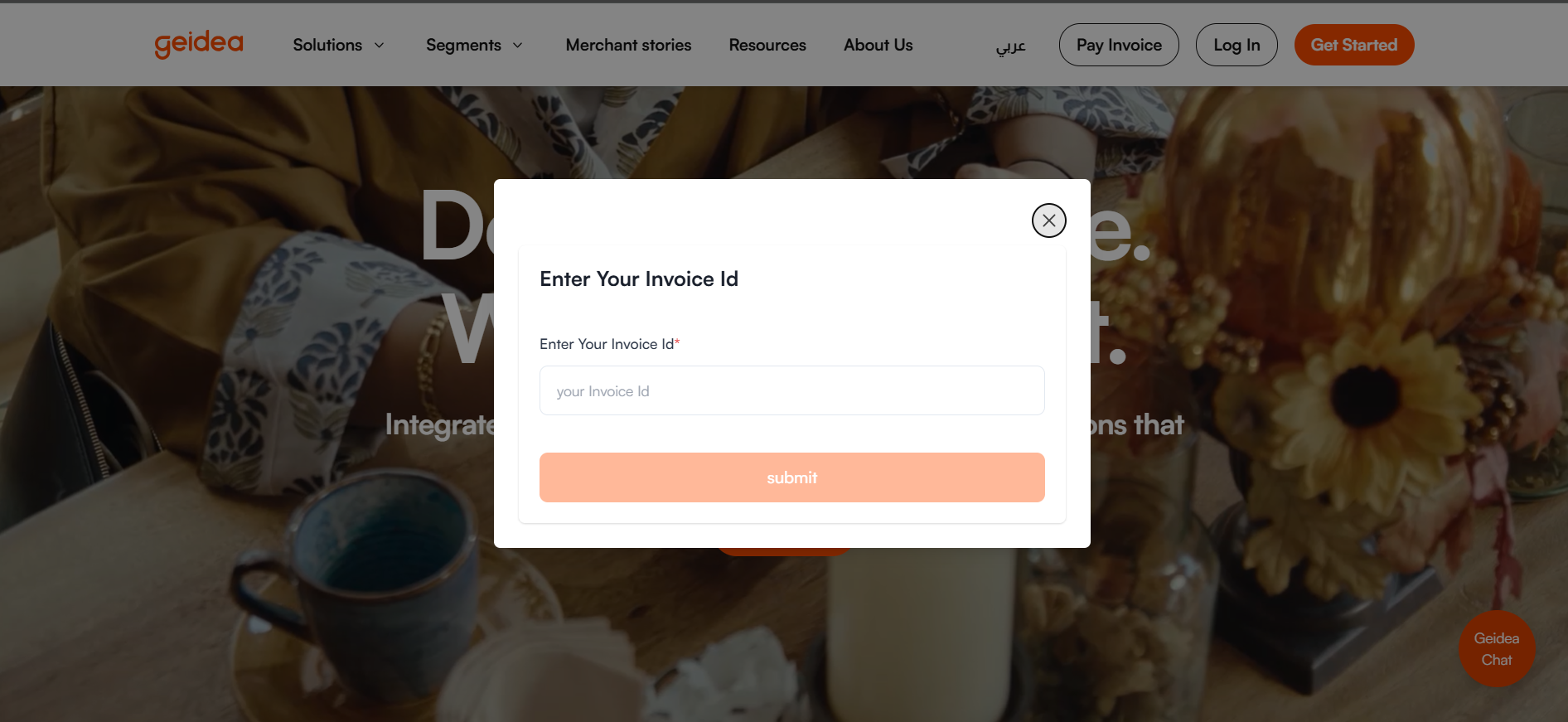
When the customer receives the Invoice ID, they can copy it and navigate to the official Geidea website. From the homepage, they should select “Pay Invoice” and enter the received Invoice ID.
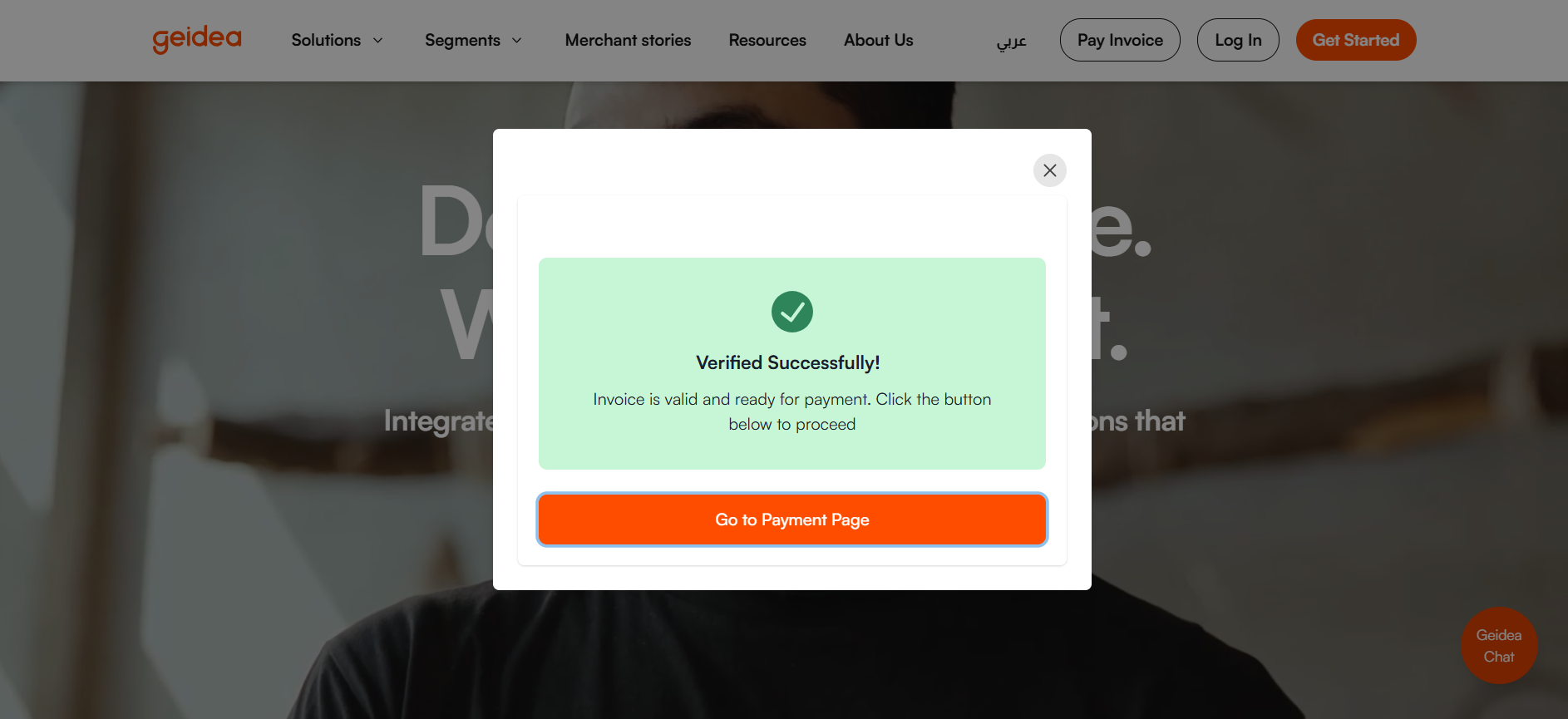
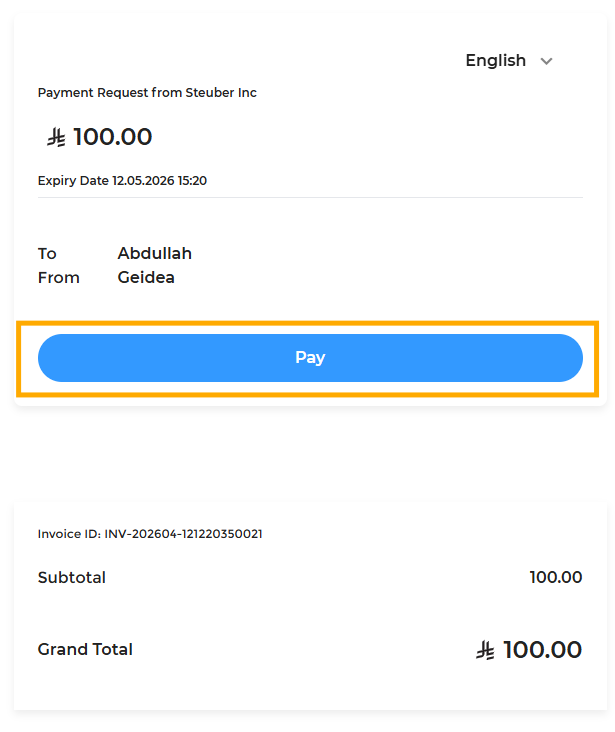
Once submitted, the customer will be redirected to Geidea’s secure payment page, where the payment can be completed using a wide range of supported payment methods, including Visa/Mastercard cards, digital wallets, Buy Now Pay Later (BNPL) options, and more.
Payment Invoice Received via Email/SMS
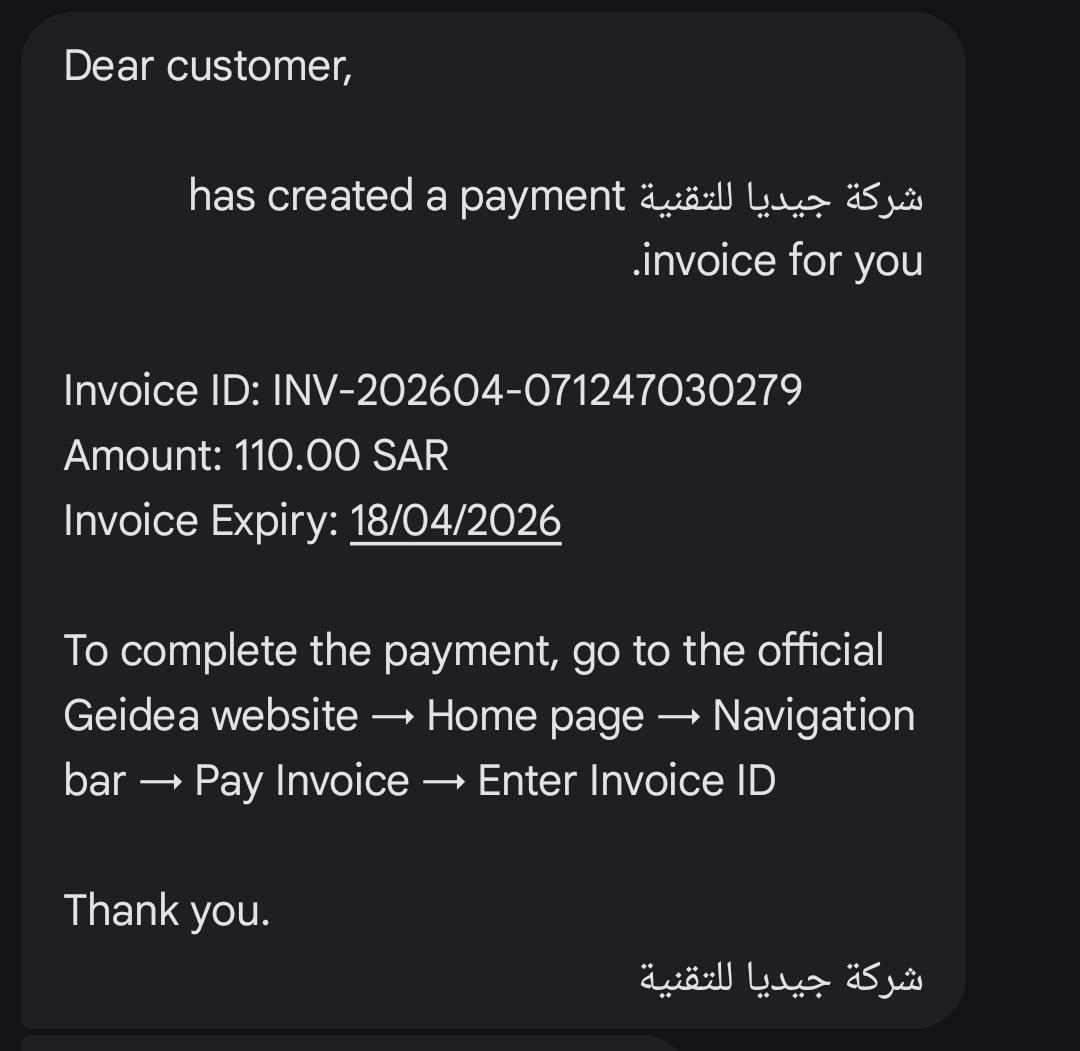
SMS InvoiceId
Customer Copies the Invoice Id sent in SMS with format "INV-XXXXXX-XXXXXXXXXXXX"
Email InvoiceId
Customer Copies the Invoice Id sent in Email with format "INV-XXXXXX-XXXXXXXXXXXX"
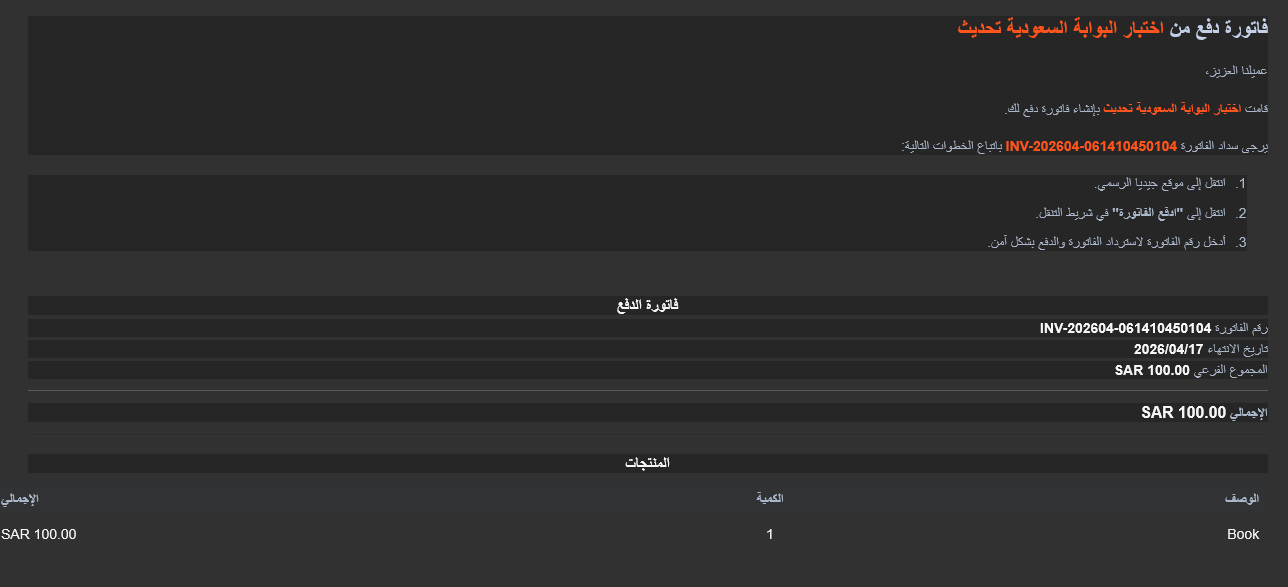
Invoice Completion
- Customer Navigates to Geidea Official Website & Clicks on "Pay Invoice"

- Click "Paste" the received InvoiceId
- Click on "Go to Payment Page" after the Invoice is verified correctly.
-
Verify the Invoice details and click "Pay" to load payment form
-
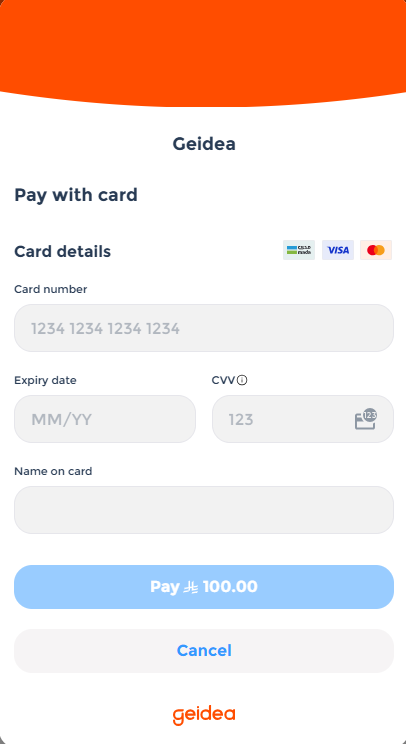
Fill Payment Details to complete the payment
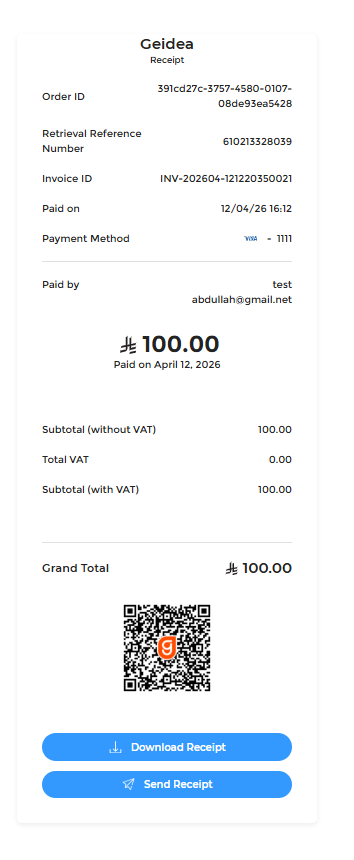
- After successful payment, receipt page will display for customer
Updated 6 months ago